Showing posts with label Tagging. Show all posts
Wednesday, September 11, 2013
Tagging External Links in SharePoint
One of the most successful Microsoft product SharePoint is becoming more and more center of our daily business lives. Users started with storing the documents, pictures, contacts, emails and then of course their bookmarks to a central location in SharePoint. Most of the time this location is their very own MySite.
Users are able to store their bookmarked links in the SharePoint and they can access whenever they want. These links could be an internal link right in the SharePoint farm or external link from outside of their farm. They can obviously copy and paste the URL of the link they would like to store right into a link list anytime. However in this blog post I would like to underline that there is another and much easier method available for them to bookmark a link utilizing SharePoint's tagging system.
Here how it works:
1. Go to your MySite, click "My Profile" link at the top navigation bar and then select "Tags and Notes".
2. Towards the bottom of the page there is a link says "Right click or drag and drop this link to your browser's favorites or bookmarks toolbar to tag external sites.". Just do as it says in the text, drag and drop this link to your browser's favorites or bookmarks toolbar.
3. Right click on the link and select add to favorites.
4. You can chose to give it a name you'd prefer also if you can add that into your Favorites Bar it would be accessible very easily. By clicking "Add" this will be added to your Internet Explorer's Favorites Bar.
5. Now it is time to test. Please go to a web site of your choice which you'd like to tag it in the SharePoint. While you are in the page please select "Tag in SharePoint" from your Internet Explorer's Favorites Bar.
6. After clicking the "Tag in SharePoint" SharePoint pops-up a new window and asks you to put your tags about this particular bookmark link. Please feel free to add all relevant tags for this bookmark because this will become handy when you are searching this bookmark later on.
7. And the here you go. Your bookmark is tagged in SharePoint.
Labels:
Cloud,
Intranet,
Metadata,
My Links,
My Site,
MySite,
MySites,
OOTB,
Out Of The Box,
SharePoint,
Social,
Tagging,
Tags
Sunday, July 14, 2013
What happened to My Links? How can I enable them?
If you've used My Links in SharePoint 2007, once you've upgraded to SharePoint 2010 you'll notice that there is no My Links option in the My Sites of the SharePoint 2010. With the introduction of Tags and Notes feature of the SharePoint 2010 Microsoft hid the My Links feature so they would like to push Tags and Notes more and they don't want people to use My Links. I can't blame them because once you start using the tags and notes feature you will see hat it way more powerful mechanism to manage and store the links and other bookmarks. I will create another blog post about how to tag external links in the SharePoint.
Let's get back to subject of this blog post. Your "My Links" went a bit of under the hood however nothing has been lost. Even if you've migrated from SharePoint 2007 your links are still there but you have to dig a bit to reveal them.
We will reveal them together in this blog. First if we look at Out of the Box My Sites or our famous top right menu there is no "My Links":
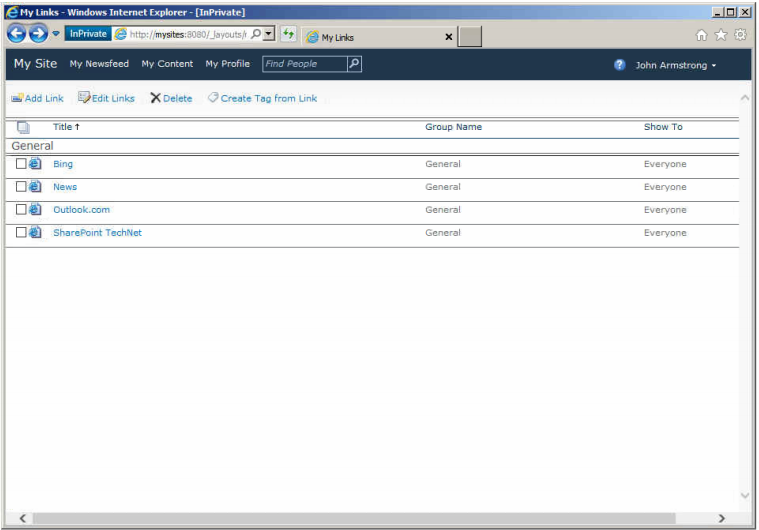
Microsoft hid our links at /_layouts/myquicklinks.aspx page. If we navigate to http://mysites:8080/_layouts/myquicklinks.aspx page we will be able to see our links carried over from the SharePoint 2007 migration:
Now we would like to add this to somewhere easy to navigate. The easiest place to add to my links as menu item is to add them My Sites top navigation menu. In order to do that we need to browse to SharePoint Central Administration > Application Management > Manage Service Applications > User Profile Service Application and select Configure Personalization Site option in the My Site Settings group:
We will click to the New Link option on the menu to add an item to My Site top navigation bar:
We will fill the following information in the New Link form and click Ok once we are done.
URL: http://mysites:8080/_layouts/myquicklinks.aspx
Description: My Links
Owner: [Add your Site Collection Admin]
Target Audiences: All site users
Voila!!! here is our mysteriously hidden My Links page revealed:
I hope this helps...
Let's get back to subject of this blog post. Your "My Links" went a bit of under the hood however nothing has been lost. Even if you've migrated from SharePoint 2007 your links are still there but you have to dig a bit to reveal them.
We will reveal them together in this blog. First if we look at Out of the Box My Sites or our famous top right menu there is no "My Links":
Now we would like to add this to somewhere easy to navigate. The easiest place to add to my links as menu item is to add them My Sites top navigation menu. In order to do that we need to browse to SharePoint Central Administration > Application Management > Manage Service Applications > User Profile Service Application and select Configure Personalization Site option in the My Site Settings group:
We will click to the New Link option on the menu to add an item to My Site top navigation bar:
We will fill the following information in the New Link form and click Ok once we are done.
URL: http://mysites:8080/_layouts/myquicklinks.aspx
Description: My Links
Owner: [Add your Site Collection Admin]
Target Audiences: All site users
Voila!!! here is our mysteriously hidden My Links page revealed:
I hope this helps...
Labels:
Content,
Migration,
My Links,
My Site,
My Sites,
MySite,
MySites,
OOTB,
Out Of The Box,
SharePoint,
Social,
Tagging,
Tags
Subscribe to:
Posts (Atom)