Showing posts with label Document Library. Show all posts

Friday, October 14, 2011

Document Sets with SharePoint 2010 Online - Office 365


Document Sets is a newly introduced feature at SharePoint 2010. Document Sets enables you to create and manage multiple documents or files in a single deliverable format. By design Document Sets is a Content Type but the way it looks and works is just like a folder with lots of features. In terms of functionality it is in between the Document Workspace and folders.

In Office 365 we can find Document Sets feature under enterprise plans. Unfortunately "Professionals and Small Businesses" plan does not come with Document Sets feature.

 Document Sets is a Feature and needs to be activated at site collection level. In order to activate Document Sets Feature at site collection level we need to navigate to the top level site and go to Site Actions -> Site Settings ->  Site collection Features under Site Collection Administration


Then activate the Document Sets Feature. Once we have done that we can see the Document Sets option in the SharePoint document libraries. We don’t need to do same settings at the site level since this is a Site Collection feature.


We can now go to any document library in our sit, select Documents from the ribbon bar and click the arrow at "New Document", and select "Document Set"


After giving a name and description to our Document Set, it gets created. As seen in the screen shot below, we can view/edit the document set's properties. In the edit property screen we can see the Document Set is actually a content type.


We can upload documents into the document sets as we are uploading a document to a document library.
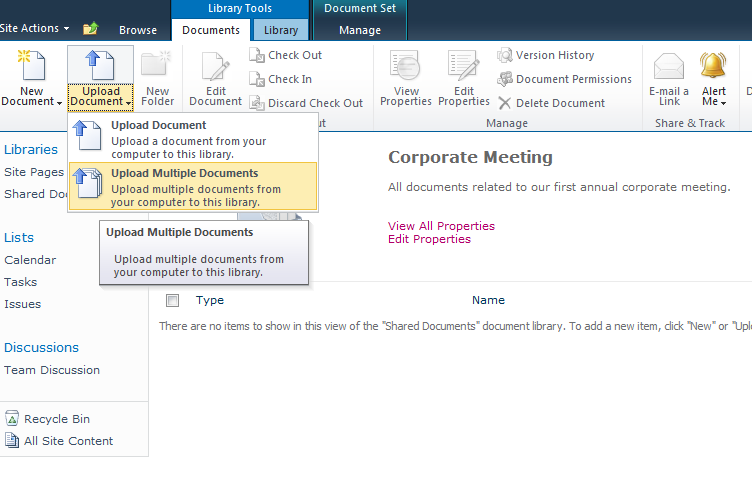


 Here we got our Document Set "Corporate Meeting" with individual files in it.


We can also set the metadata for Document Set and all the documents in the Document Set gets the same metadata. It is also possible to run workflow on the document set itself instead of running it on each different file.


Thursday, September 22, 2011


    Office 365 and SharePoint Designer Workflow. 

    Long waited Office 365 is out since June 2011. Microsoft's cloud base office productivity suite for small and large businesses finally met with end-users. Office 365 gives you anywhere access to email, documents, contacts, and calendars. Cloud based offering consists of Exchange Online, SharePoint Online, Lync Online and Office  Applications Online.

    Very light version of SharePoint included in the previous version of the Office 365 (BPOS) has gone to a significant uplift and comes as a very decent version of the SharePoint 2010.

    Of course one of the most important features of the SharePoint is the workflows. In this post I would like to demonstrate how we can use SharePoint Designer 2010 to create a workflow on Office 365.  In this demo we will have a receipt library with a custom metadata property of department. What we want is, to send a link to appropriate department manager once a new receipt is uploaded to the library. Let's say, if receipt belongs to marketing department marketing manager will receive an email with a link to a document. If it is support then support department manager will receive the email. For all other departments operations manager will receive the email with the link.

    1. Lets create a new receipt library called receipts. Go to "Site Actions" ->  "New Document Library"

    1. Create a custom metadata column called department as "Choice" with the values of "Marketing, Sales, Operations, Finance, and Support" by going to "Library" -> "Library Settings" -> "Create Column"


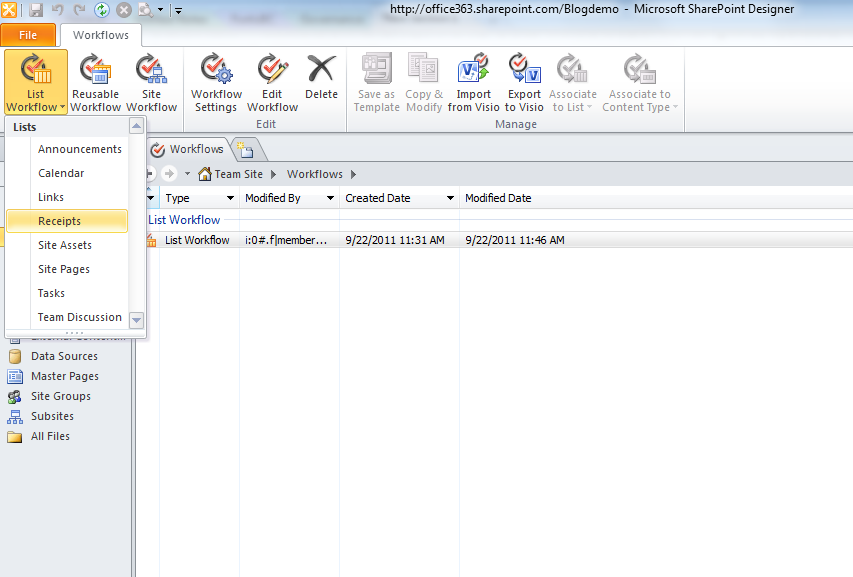
    1. Now time to go to SharePoint Designer 2010 and create the workflow. Select "Workflows" -> " List Workflow" -> "Receipts" and call it "Receipt Notification"


    1. It's time to add the conditions and actions as below.  


    1. When you are composing the email message, add recipient to "To"  field and by selecting them from the address book. Type subject and the message body as you prefer. You can add the link by clicking the link button and select "Current Item" for the text and "Encoded Absolute URL" for the address.


    1. Now we are going to make this workflow to run every time a new receipt is inserted into the receipts library. Let's click "Receipt Notification" on breadcrumb and select "Start this workflow automatically when a new item is created." under the "Start Options."


    1. Let's save and publish the workflow.


    1. Workflow is ready. Now let's run and see how it works by adding a new receipt document into the "Receipts" library at Office 365 Team Site.


    1. We will select "Marketing" department to see if Marketing Manager receives the email. As you'll see Receipt Notification workflow is worked and completed.


    1. Now lets check to see if marketing manager got the email with link. Once we go to office365.com, sign in with Marketing Manager credentials and go to "Inbox", yes there is an email with a link to the receipt as we are expecting. By clicking the link takes us directly into the document after security validation.


    I hope you'll find this useful. Please drop me an email for any feedback.


    Cheers!

    Bruce